Inspired by Owen Roger’s recent appearance on Hanselminutes, I decided to pick up a picture frame and give it some SharePoint integration love. I went for the Samsung SPF-72V (Actually a birthday present from my brother – thanks!)

Importantly this picture frame supports WIFI and viewing of pictures from any RSS feed. I almost bought the Kodak Easyshare however this does not support arbitrary photo feeds, only those from Kodak’s own picture site [sigh].
Business Key Performance Indicators
My first integration idea centered around the KPI capabilities built into the new version of SharePoint 2007.

Why would you want to display KPI’s them in a picture frame anyway? Perhaps to increase the visibility, share the responsibility of the KPI’s and to make the information more accessible.
Prototype
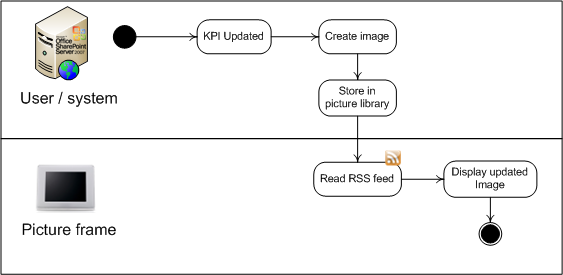
I decided to make a graphical representation of the SharePoint KPI list using GDI+, each time one of the lists KPI’s was updated. Then save the result in a SharePoint picture library. The picture frame would be pointed at the picture library’s RSS feed displaying the latest graphical representation of the KPI list.
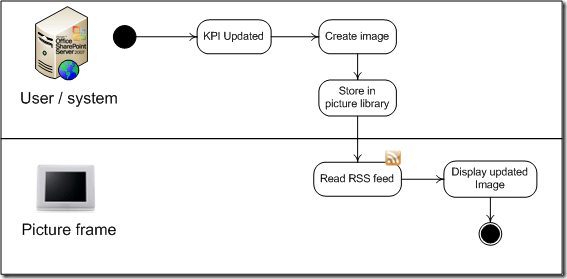
1. Updating the image
I extended the KPI base column indicator content type using a feature and hooked the ItemUpdated event
<Elements xmlns="http://schemas.microsoft.com/sharepoint/">
  <ContentType ID="0x00A7470EADF4194E2E9ED1031B61DA0884" Name="Common Indicator Columns">
    <XmlDocuments>
      <XmlDocument NamespaceURI="http://schemas.microsoft.com/sharepoint/events">
        <spe:Receivers xmlns:spe="http://schemas.microsoft.com/sharepoint/events">
          <Receiver>
            <Name>KpiEventReceiver</Name>
            <Type>ItemUpdated</Type>
            <SequenceNumber>10000</SequenceNumber>
            <Assembly>
              KpiFrameSolution, Version=1.0.0.0, Culture=neutral, PublicKeyToken=6ba389ff4c4c60ec
            </Assembly>
            <Class>KpiFrameSolution.Code.EventHandlers.KpiEventHandler</Class>
            <Filter></Filter>
          </Receiver>
        </spe:Receivers>
      </XmlDocument>
    </XmlDocuments>
  </ContentType>
</Elements>
In KpiEventHandler I extract the KPI information for the list to which the item being updated belongs. Unfortunately this is where some of the madness began. The kpi status field which indicates red/yellow/green is always null i.e. field["KpiStatus"] = nada. To make matters worse if the column is not a static kpi the Value field is also empty.
Okay so fire up reflector and see how the SharePoint KPI WebPart is able to work out all these values.
Turns out there is a nice factory class KpiFactory that returns a Kpi class for a given list item:
public static Kpi GetKpi(SPListItem listItem);
Using the Kpi class we can obtain a reference to the KPIData class and finally get our grubby hands on the value, status and trend.
public KPIConsts.KPIData GetKpiData();
// Note requires HttpContext
Slight problem KpiFactory is marked as internal – doh. Oh well that’s why they invented reflection. Seeing as the out-of-the-box KPI WebPart is allowed to call into this factory class, why can’t I? So I do obtaining the type like so:
Type kpiFactoryType = System.Reflection.Assembly.GetAssembly(typeof(KpiDisplayFormControlBase)).GetType("Microsoft.SharePoint.Portal.WebControls.KpiFactory", true);
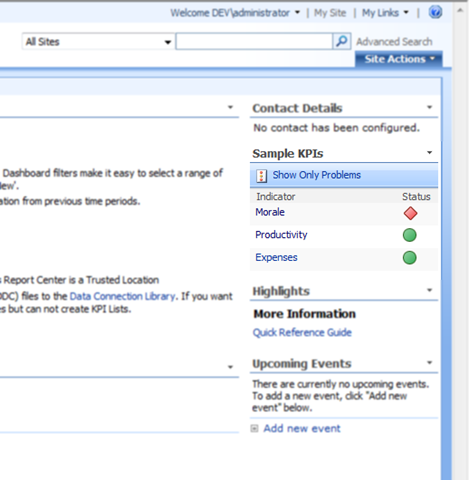
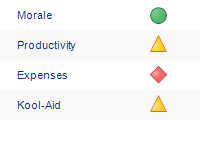
Once you’ve grabbed all of the KPIData it’s just a question of drawing some pretty pictures to represent the list. Because of my crap design skills lack of time, I just copied the HMTL version of the list using the System.Drawing classes to mimic the original.
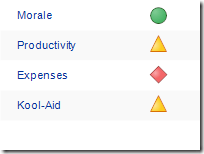
System.Drawing representation of the KPI list
2. Publishing the RSS feed
What could be easier I thought? Just turn on anonymous access to the picture library, enable the feed – using enclosures of course 🙂 and we will be up and running on the picture frame looking at our glorious KPI’s
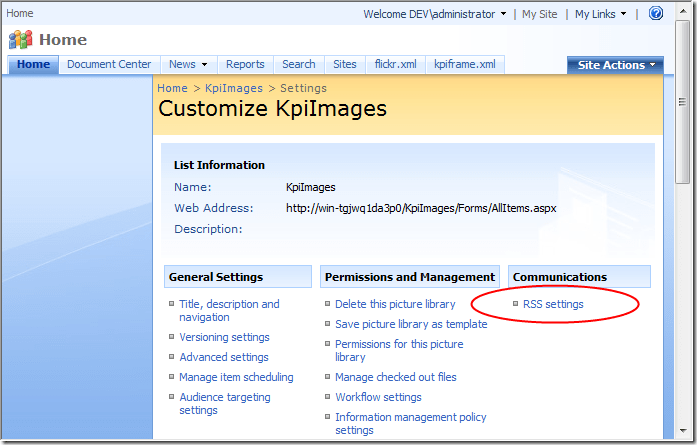
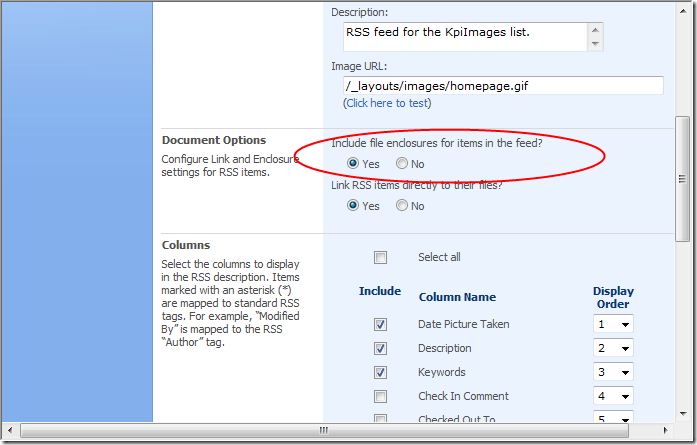
Didn’t work, the picture frame wouldn’t display my images, but flickr feeds worked fine, hmm. So I implemented a custom SharePoint feed that used the same media rss specification that flickr outputs. No joy. Still no image displaying.
Starting to get sick of this bloody picture frame… Suspecting that the picture frame couldn’t read the .net generated images I copied some of the flickr images into the SharePoint image library. Low and behold the flickr images appeared but mine still weren’t appearing.
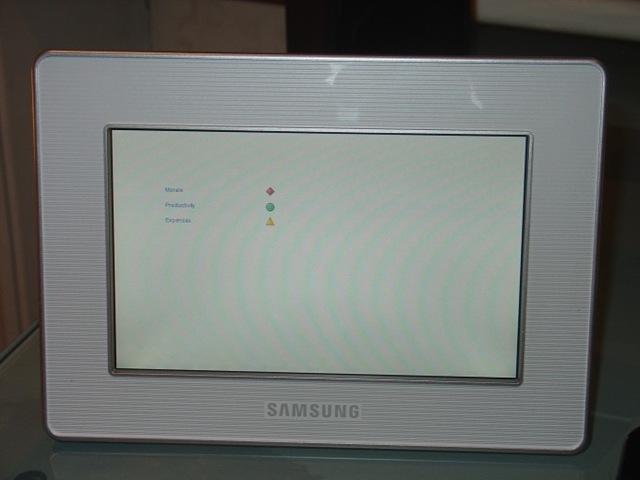
Long and the short it, after what felt like a day’s worth debugging (read couple of hours), the solution was embarrassingly simple. The picture frame ignores images that are of significantly lower size than the devices 800 x 480 screen resolution. And because this was a prototype, I hadn’t bothered to great a large complete image, rather I just created a 300×200 graphical representation of the list. Once I bumped the image size to 800 x 480 every thing worked fine, or did it?
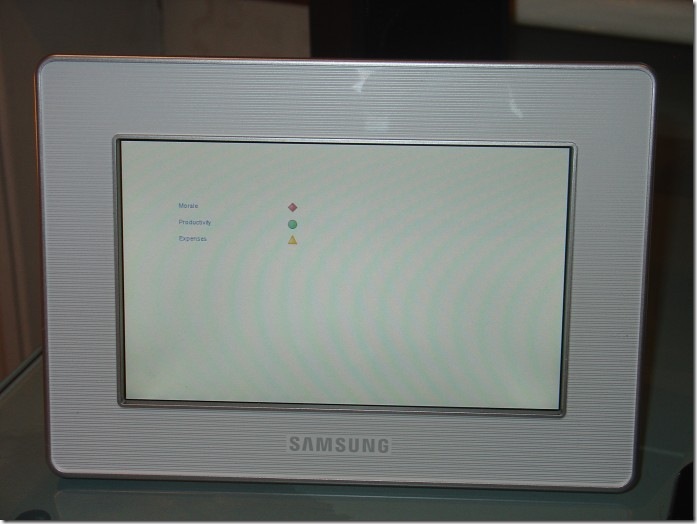
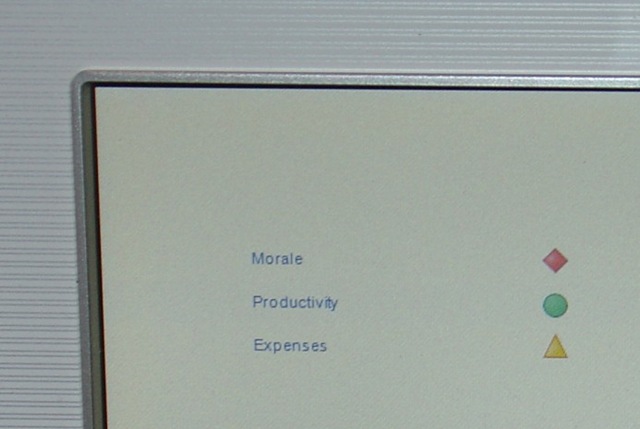
Looks much better in real life –
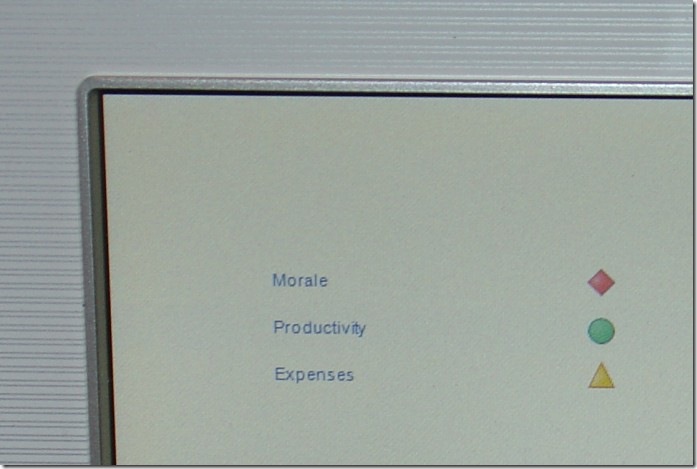
– as I’m rubbish at photography.
Final gotcha
The Samsung SPF-72V doesn’t seem to reload the RSS feed, unless manually prompted to do so. Even using my custom SharePoint RSS feed with a <ttl>1</ttl> had no effect. The device simply cached the initial pull from the RSS and looped those first set of images (also loading the images from cached memory).
Solution: Turn off the picture frame’s local storage – uncheck the tick box highlighted in red. Then always create two images with same names, the frame then cycles between the two images always requesting them from the server each time.
Note turning off caching does not cause the RSS to get reloaded just causes the images to be pulled from the server every time they are displayed. If you only have one image in the feed, this will not get reloaded, hence the need for two.

Next steps
- Improve the image, make it larger, add more fidelity.
- Make the source code more configurable, a couple of places were hard coded to get this up and running quickly
Source code
- If you interested I’ve attached the source code used for this prototype. It’s not really fit for public consumption from an installation point of view (and some of the hard coded URLs)
SharePoint Picture Frame Continuous Monitoring Source Code (978kb)





 Edward Wilde